The simple keyboard shortcut guide
Just a few keystrokes can turn your computer into a willing servant. Jamie Merrill explains the commands you'll need to spare your overworked mouse hand
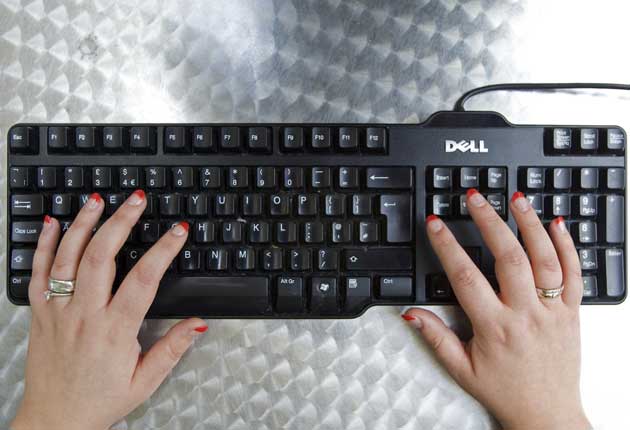
We all know what Ctrl-Alt-Delete does. It's a simple way, by pressing three keyboard keys, to escape a whole host of blue screen nightmares and crashed computer programs. But despite all the time we spend glued to our machines, how many of us can remember the other keyboard shortcuts that could save us hours every week?
With just a few simple keystrokes our computers can be turned from troublesome beasts, standing in the way of completing that crucial report or overdue school assignment, into our willing and able servants.
Within most good programmes, almost every function or action can be carried out with keyboard commands or shortcuts – a simple and ideally easily-memorable sequence of two or three key strokes. And when you get proficient at using them, keyboard shortcuts are faster than breaking your flow by reaching for the mouse.
For example, pressing Ctrl and P simultaneously to print a page is faster and far less effort than hunting for the printer icon. While in some software, such as Microsoft Windows, you can even set up your own shortcuts for your most commonly-used functions.
Andrew Miller, technology journalist and founder of thinkabouttech.com is a self-avowed keyboard shortcuts devotee and typical of the site's users. "I use keyboard shortcuts in almost every application. It wastes so much time to move your hands from keyboard to the mouse and back again, when learning something as simple as Ctrl-T will do the same job."
And speed isn't the only reason we should be ditching our plastic rodent friends. Today's office workers and home computer users push the mouse around as if we were designed for it. Which of course we are not, so it's not surprising that repetitive strain injury (RSI) is a real and growing problem.
An umbrella term for a range of musculoskeletal problems in the upper arms and neck, RSI affects more than 200,000 people each year and costs business and individuals an estimated three million working days and £300m in lost time and sick pay. Its symptoms can be as varied as mild aches to numbness and pins and needles, through to quite considerable and long-lasting pain.
Correct posture and regular breaks go some way to reducing the risk, but another way to minimise the damage caused to your fragile limbs by spending hours a day glued to your computer is to use keyboard shortcuts.
According to Trevor Shaw, an expert in RSI from the Health and Safety Executive, the computer mouse is one of the principal culprits for causing RSI. "Modern computers use the Windows style of interface, which makes them very easy to use, but you also tend to have to perform a lot of intense movement with your hand on the mouse and lots of clicks to get to the function you are after. Keyboard shortcuts are quicker and reduce the number of movements you are required to make."
And Shaw confirms that it's not just at work that computer users need to be aware of their health. "People need to be aware that intense computer use at home can store up problems for them later. I've seen RSI in all sorts of people, from silver surfers to young gamers," he warns.
So tech-savvy IT professionals may be hooked on shortcuts and the health advice is certainly in their favour, but which are the most useful and how will you remember them? Short of using an exhaustive set of reference cards the size of a dictionary, you'll never remember every keyboard shortcut. So to save you time and your poor muscles, here are a selection of the most practical shortcuts in a handy cut-out-and-keep guide.
Microsoft Office and Windows
Save.....................Ctrl-S
Print.....................Ctrl-P
Find.....................Ctrl-F
Copy.....................Ctrl-C
Paste .....................Ctrl-V
Undo.....................Ctrl-Z
Delete.....................Ctrl-D
Page break......... Ctrl-Enter
Change window ......... Alt-Tab
Quit application ......... Alt-F4
Minimise window ......... Alt-Space-N
Maximise window ......... Alt-Space-X
Close sub-window......... Ctrl-F4
Task manager or Windows Security ......... Ctrl-Alt-Delete
Screen grab......... Alt-Print screen
Rename file......... F2
Go to address bar......... F6
Lock PC.....................Windows-L
Close all windows......... Windows-M
Launch help......... Windows-F1
Switch programme......... Windows-Tab
WORD
Jump to end of document ......... Ctrl-End
Jump to start of document ......... Ctrl-Home
Go to last edit ......... Shift-F5
Check spelling ......... F7
Select All ......... Ctrl-A
Select a whole word .....................Ctrl-Shift-left/right arrow
Select a whole paragraph ......... Ctrl-Shift-up/down arrow
Bold.....................Ctrl-B
Italics .....................Ctrl-I
Underline ......... Ctrl-U
All capitals......... Ctrl-shift-A
Copy Format Ctrl-shift-C
EXCEL
Next cell .....................Tab
Previous cell......... Shift-Tab
First cell in row......... Alt-Home
Last cell in row......... Alt-End
Top cell in column......... Alt-Page Up
Last cell in column......... Alt-Page Down
Repeat function......... F4
Google Mail
Compose new message .....................Shift-C
Reply.....................Shift-R
Reply all .....................Shift-A
Forward .....................Shift-F
Save a draft ......... Ctrl-S
Delete.....................#
Label.....................l
Mark as read ......... Shift-I
Mark as unread ......... Shift-U
Select all mail......... * then A
Deselect all mail......... * then N
Go to sentmail......... G then T
Go to contacts......... G then C
Search (puts cursor in search box) ......... /
Move to next message .....................N
Move to previous message .....................P
Open a conversation ......... O
Report spam ......... !
To turn on these shortcuts on or off, click Settings, and then select the option Keyboard shortcuts
Google Docs
Print .....................Ctrl-P
Save .....................Ctrl-S
Go to full screen ......... Ctrl-Shift-F
Undo.....................Ctrl-Z
Redo .....................Ctrl-Y
Copy .....................Ctrl-C
Cut .....................Ctrl-X
Paste.....................Ctrl-V
Select all.....................Ctrl-A
Full justify......... Ctrl-F
Left alignment ......... Ctrl-l
Centre alignment ......... Ctrl-E
Bold.....................Ctrl-B
Underline ......... Ctrl-U
Italics.....................Ctrl-I
Go to last cell......... Ctrl-End
Go to first cell......... Ctrl-Home
Move to next worksheet......... Ctrl-Page Down
Move to previous worksheet......... Ctrl-Page Up
If you are using a Mac, you can use these shortcuts by replacing Ctrl with the Command Key ( ).
Apple Mac
Open document ......... Command-O
Save .....................Command-S
Print .....................Command-P
Find .....................Command-F
Select All ......... Command-A
Cut .....................Command-X
Copy.....................Command-C
Paste .....................Command-V
Undo.....................Command-Z
Switch application ......... Command-Tab
Quite Application ......... Command-Q
Close .....................Window Command-W
Close all open windows .....................Command-Option-W
To click "OK" in dialogue boxes ......... Return key
Move item to trash ......... Command-Backspace
Empty trash ......... Command-Shift-Backspace
New window (Finder).....................Command-N
Minimise window......... Command-M
Hide/Show Dock......... Command-Option-D
Open "Computer" folder .....................Command-Option-C
Open "Home" folder ......... Command-Option-H
Open Applications ......... Command-Option-A
Force Quit......... Command-Option-ESC
These shortcuts apply to Mac OS 8 or newer, and most work in Mac OS X. Command is the key labelled ' ' and Option is the key labelled "Alt" on most keyboards.
Adobe Photoshop
Undo, multiple times Ctrl-Alt-Z
Hand/move tool ......... Spacebar
Switch document ......... Ctrl-Tab
New layer ......... Ctrl-Shift-N
New layer ......... Ctrl-Shift-Atl-N
Duplicate layer ......... Ctrl-J
Fit to window ......... Ctrl-0
Re-run filter ......... Ctrl-F
Fade filter ......... Ctrl-Shift-F
And remember...
You'll need a Standard 101/102 Key or Natural PS/2 Keyboard to use these shortcuts. Except on a Mac, where you'll require a Mac-branded keyboard. And in most programs, further help can be found by searching for keyboard shortcuts in the help menu (Press F1 in Windows and Command-? on a Mac for this menu).
Join our commenting forum
Join thought-provoking conversations, follow other Independent readers and see their replies
Comments
Bookmark popover
Removed from bookmarks