How to film great video and audio at concerts using your phone: expert tips, from tech to settings
Struggling with blurry footage and poor audio after a night out? From filming in low light to cutting through crowd noise, DJ Miamor shares practical tips with music writer Hannah Ewens on capturing sharp, shareable gig footage using your phone

.jpg)
Hannah Ewens is a writer and editor specialising in music, culture, and profile interviews. She is the author of the non-fiction book Fangirls: Scenes From Modern Music Culture.
It’s deceptively tricky to capture good video at a club or gig on your phone. In the excitement of the night, it can feel like what you’re filming is good enough – until you watch the footage back. What felt like an unforgettable moment often translates into shaky video, distorted sound and grainy visuals, destined for the graveyard of your phone. Between low lighting, loud speakers and packed crowds, live music is one of the hardest environments to capture well – but with the right techniques, and newer smartphone features designed for low-light video, stabilisation and clearer audio, it’s possible to record clips that do the moment justice.
Someone who knows plenty about this is DJ Miamor, real name Mia. Mia came up on the UK club scene soundtracking young people’s nights out with her addictive blend of R&B and Afrobeats. Whenever she goes to clubs to perform or support her peers, she has no idea what the lighting and environmental challenges will be for shooting. She doesn’t want to rely on the venue videographer, rather shoot her own content for her channels.
Recently she started using the Samsung Galaxy S26 Ultra, and it’s completely changed the game for her. Here she shares her top tips for shooting great quality video and audio while you’re on a night out.
Clean up background noise for clearer audio

Often, so much noise competes for attention in your video – or worse yet the wrong element of noise drowns out the rest entirely. Sometimes even Mia’s music, the most important part of her videos, can’t be heard. Relatedly, there’s nothing worse than when she wants to repost other people’s stories of her performing on her social media, but the audio is a racket.
“I’m not a sound engineer, so even just hearing the word audio can be daunting,” she says. “But using the Audio Eraser* on the Galaxy S26 Ultra meant that it automatically detected the external sounds. I usually want to isolate the music because I can’t sing and I don’t want my voice in the audio behind the track.” In recent videos, she’s also managed to lower the volume of the wind and get rid of that buzz of standing too close for a speaker or sound system, with the feature allowing her to grab that sound and delete it. “Whenever audio sounds like a tin can, you can fix that instantly and easily,” she says.
Use low-light settings to avoid grainy images and video
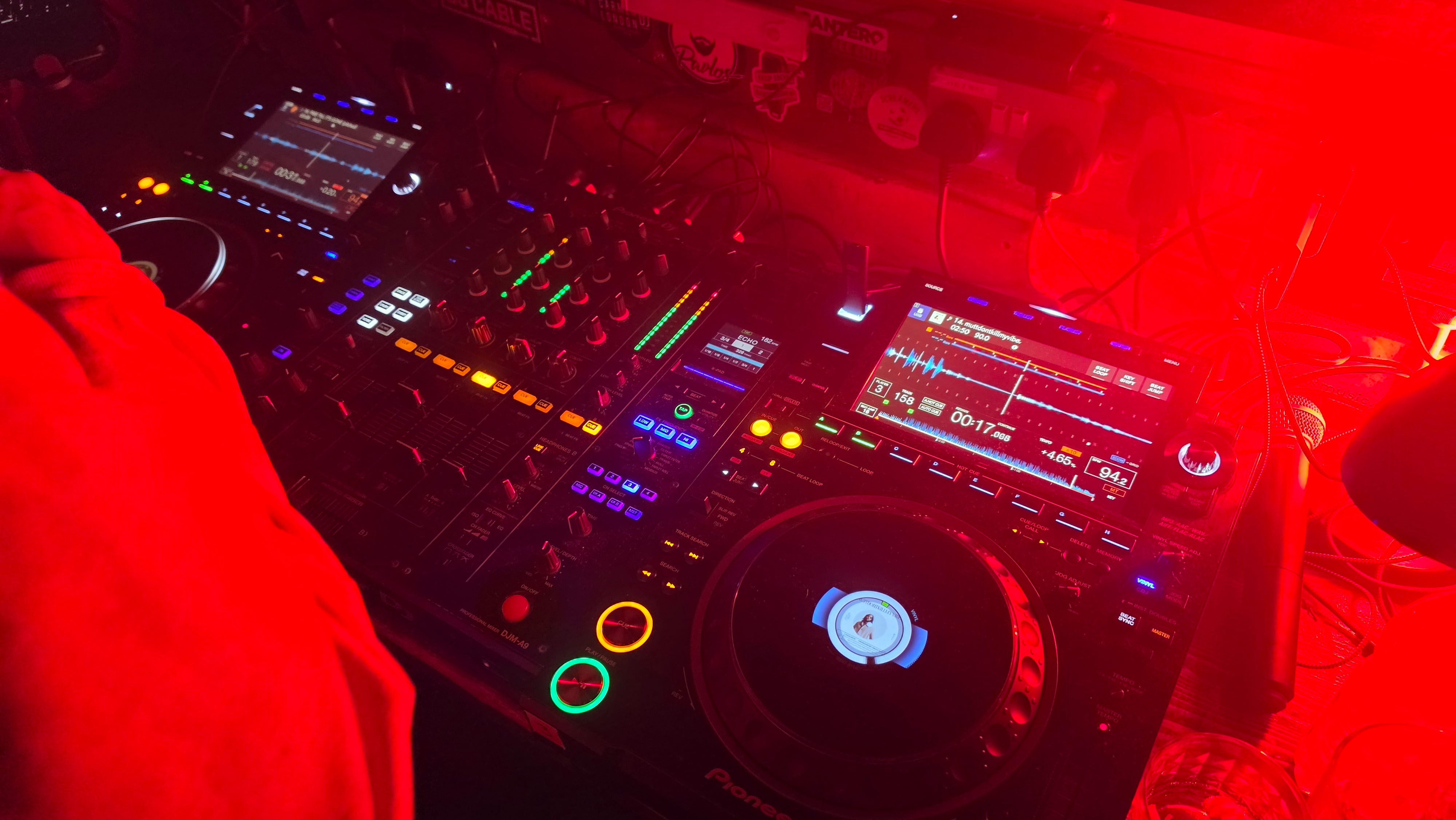
As soon as there’s not enough light, content will look pixelated and blurry. “The Nightography video** feature has been a lifesaver,” Mia says. “I used to always have a problem with my other phone at night, everything would come out grainy but with the right feature – or the right light – your content won’t come out muddy or grainy.”
The 200 megapixel main camera also really helped with that, she adds, “so that even in low light you don’t have to stress about doing too much editing on top of that – it makes phone content look really crisp.”

.jpeg?quality=75&width=230&crop=3%3A2%2Csmart&auto=webp)
Edit out distractions using AI video tools
It’s not ideal when the video is almost perfect – there’s something fun about what you and your friends are doing for instance – but some unnoticed detail in the shot is spoiling it.
“With Photo Assist† you can tell AI to remove or add in objects and items – and I found it so easy to use the stylus to circle something unwanted,” says Mia, who also uses the feature for images and videos taken at home. “It even gives you multiple versions of your video or photo.”
Use stabilisation to avoid shaky footage
Even if you’re trying to do a stylised video that’s in the action and moving about excitedly, there needs to be a degree of stability to what you’re shooting. Typically, Mia takes a basic tripod with her if she wants to shoot stabilised content, even if it’s just for her phone. However, with the Galaxy S26 Ultra, you can go equipment free.
“Clubs and venues are religiously hectic and my hands are notoriously shaky – but with the Super Steady Video‡ feature built into the video section of the Galaxy S26 Ultra, the stabilisation was so good, it looked professionally filmed on a proper video camera,” she says. “It even worked when I was dancing and filming at the same time.”
Get the best angle or use optical zoom without losing quality
Rather than take a video of the action that you know isn’t quite right in the moment, make sure you get to the spot that gives you a clear open shot of the subject.
“Often I’ll want to take a great video of the performer behind the decks but I’m too far away to get a clear shot,” says Mia. “Ordinarily I’d just get a bit closer because usually with phones you’ll zoom and it’ll look so blurry it’s like a one pixel phone. But on the Galaxy S26 Ultra, I could even zoom in 10x optical quality. It almost felt as invasive as a telescope!”
Find out more about the Samsung Galaxy S26 series and Galaxy S26 Ultra camera and AI features at Samsung
*Samsung account login required. Six types of sound can be detected; voices, music, wind, nature, crowd and noise. Results may vary depending on audio source & condition of the video. Network connection required to be used on supported apps.
**Results may vary depending on light condition, subject and/or shooting conditions.
†Requires network connection and Samsung account login. A visible watermark is overlaid on the saved image to indicate it was generated by Galaxy AI. Accuracy of output not guaranteed.
‡Super Steady results may vary depending on editing method and/or shooting conditions.
Bookmark popover
Removed from bookmarks